Vrizoom User Guide
Everything you need to set up your Twilio softphone and get the most out of every feature.
Quick start

Sign in
Open Vrizoom and tap Sign in with Apple, or Log in with Email to create an account.
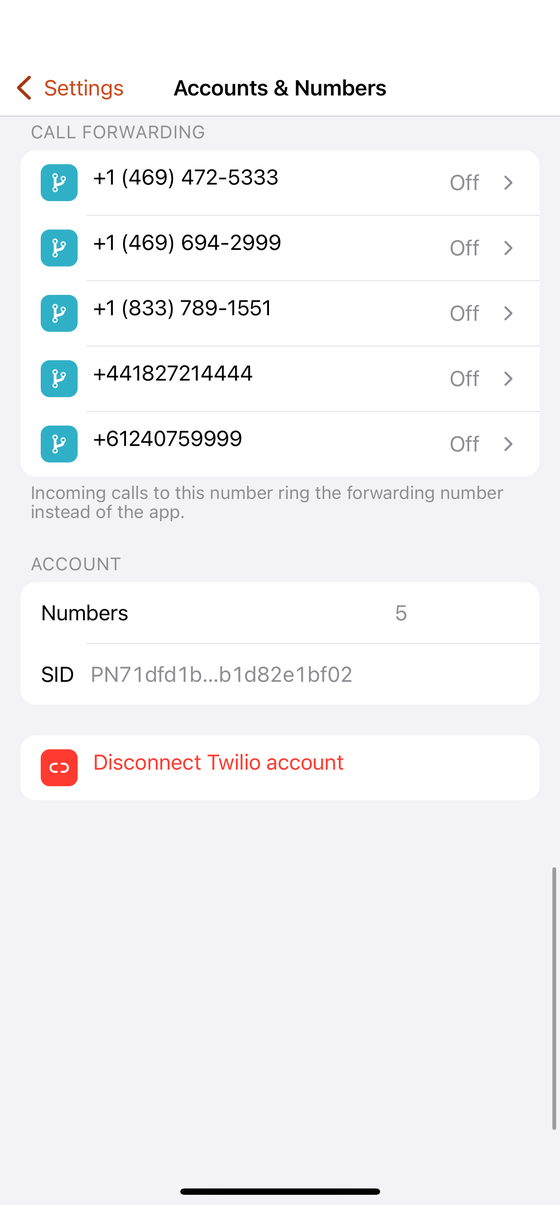
Connect Twilio
Paste your Twilio Account SID and Auth Token. Vrizoom validates them and sets everything up automatically.
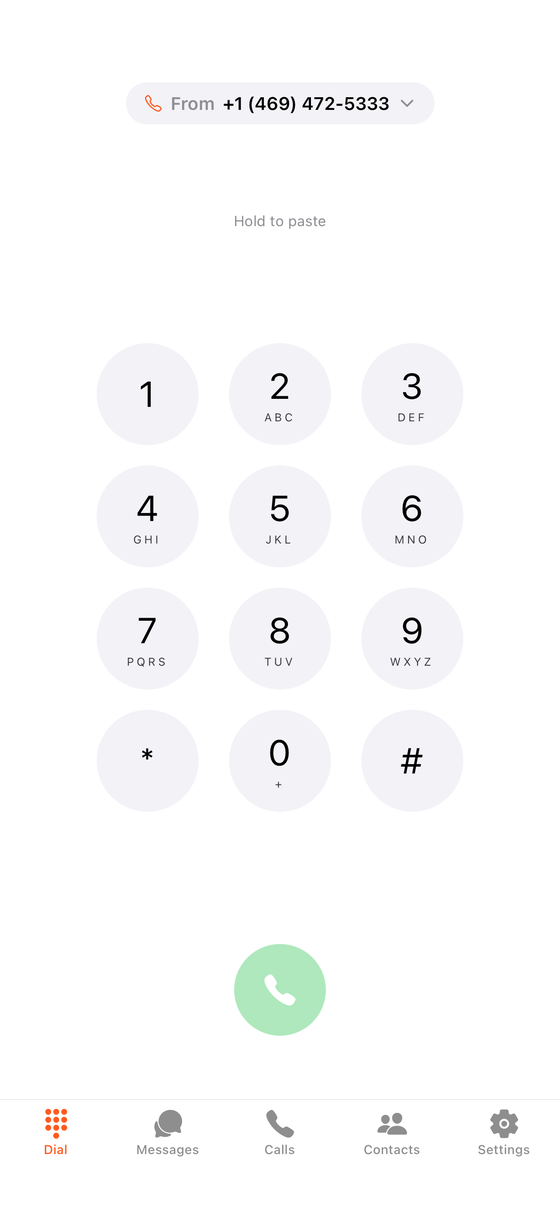
Start calling
You land on the dialer. Pick the number to call from, type a number, and tap the green button.
Signing in
On the welcome screen you have two ways in:
- Sign in with Apple, the fastest option. Uses your Apple ID, no password to remember.
- Log in with Email, tap Sign up to create an account. We email you an 8-digit code to verify it.
Sign-in is secured by Microsoft Entra. Your login is separate from your Twilio account.
Connecting your Twilio account
Vrizoom runs on your own Twilio account, so you keep full control of your numbers and billing. To connect it:
- Open the Twilio Console and copy your Account SID and Auth Token from the dashboard.
- In Vrizoom, paste both into the Connect your Twilio screen and tap Connect.
That’s it, Vrizoom validates the credentials and provisions everything needed for calls and messaging. Your Auth Token is encrypted and never shared. You can manage accounts and numbers any time under Settings → Accounts & Numbers.
Making & receiving calls
The Dial tab is a full native dialer with HD voice over Twilio.
- Tap the From chip at the top to choose which of your numbers to call from.
- Type a number, or hold to paste one straight in.
- Tap the green button to call. Grant microphone access the first time.
- Incoming calls ring full-screen, even when the app is closed.
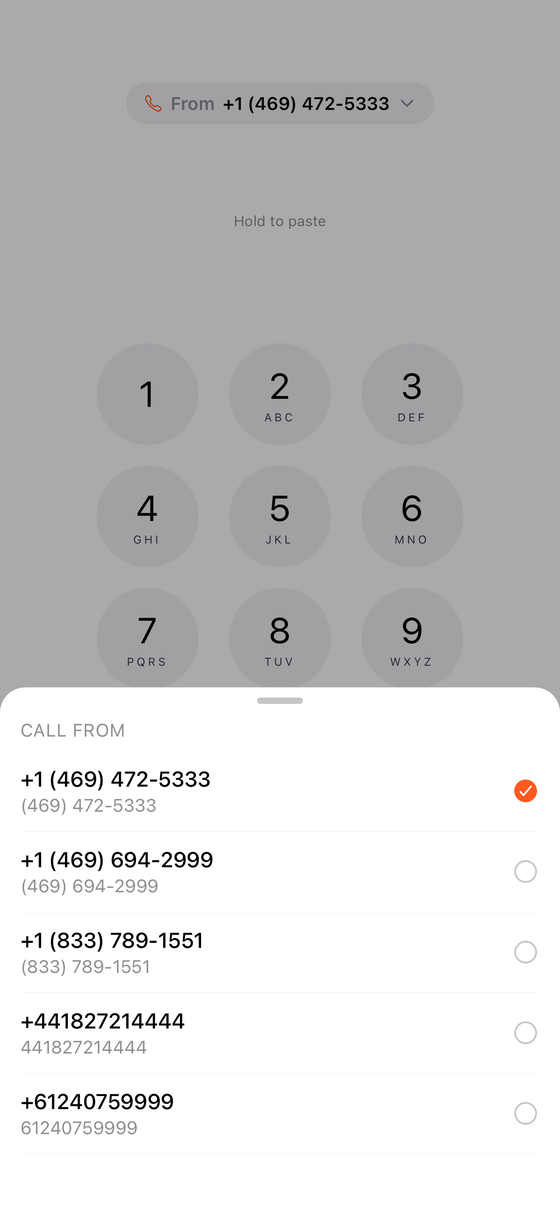
Choosing your caller ID
Every call can go out from a different line. Tap the From chip on the dialer to pick which of your numbers rings the other side, so the right line always shows.
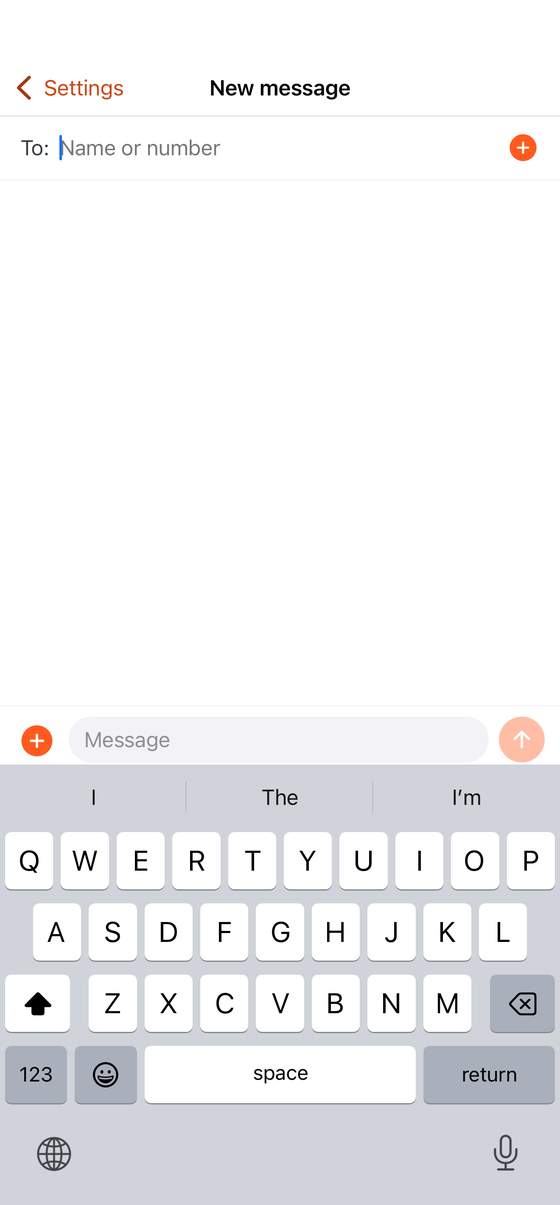
Texting, SMS & MMS
The Messages tab keeps every conversation in one threaded inbox.
- Start a new message and choose which number to send from.
- Send photos and attachments with MMS (Pro).
- Tap a thread to see its full history, synced across your devices.
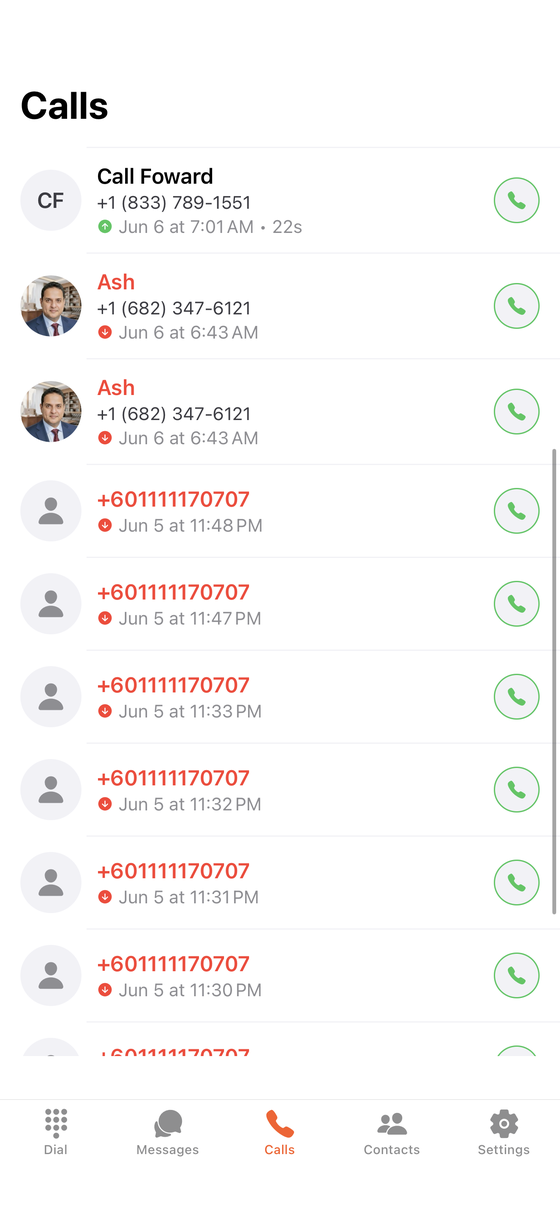
Call history
The Calls tab lists your recent calls with names and photos pulled from your contacts (on-device only). Tap any entry to call back instantly.
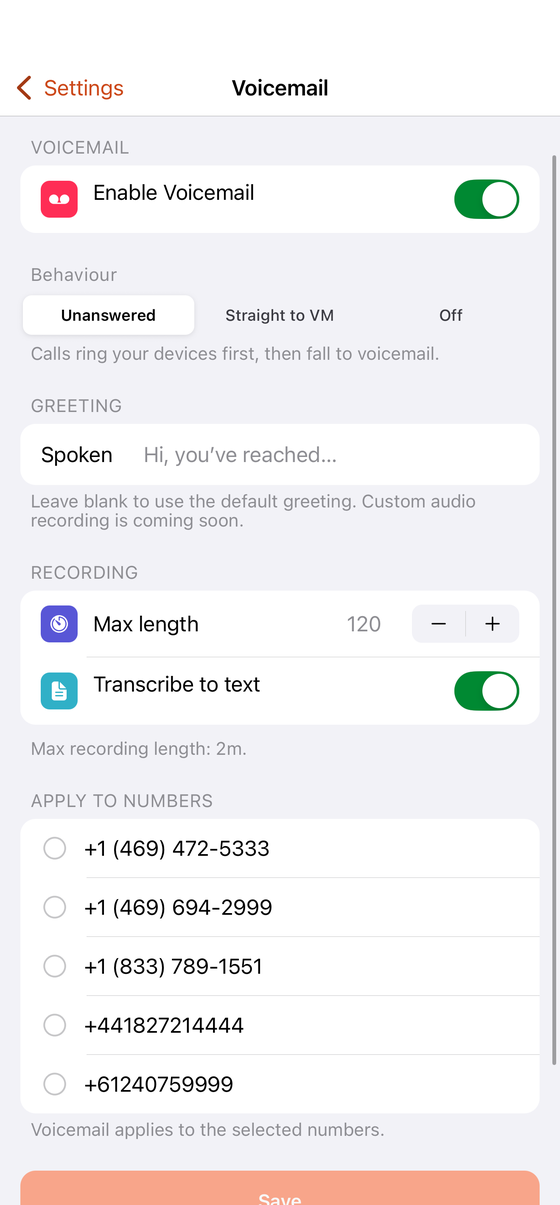
Voicemail & transcripts
ProSet up visual voicemail per number under Settings → Voicemail.
- Record or type a custom greeting.
- Choose when it answers, straight to voicemail, or only when unanswered.
- Turn on transcription to read messages as text.
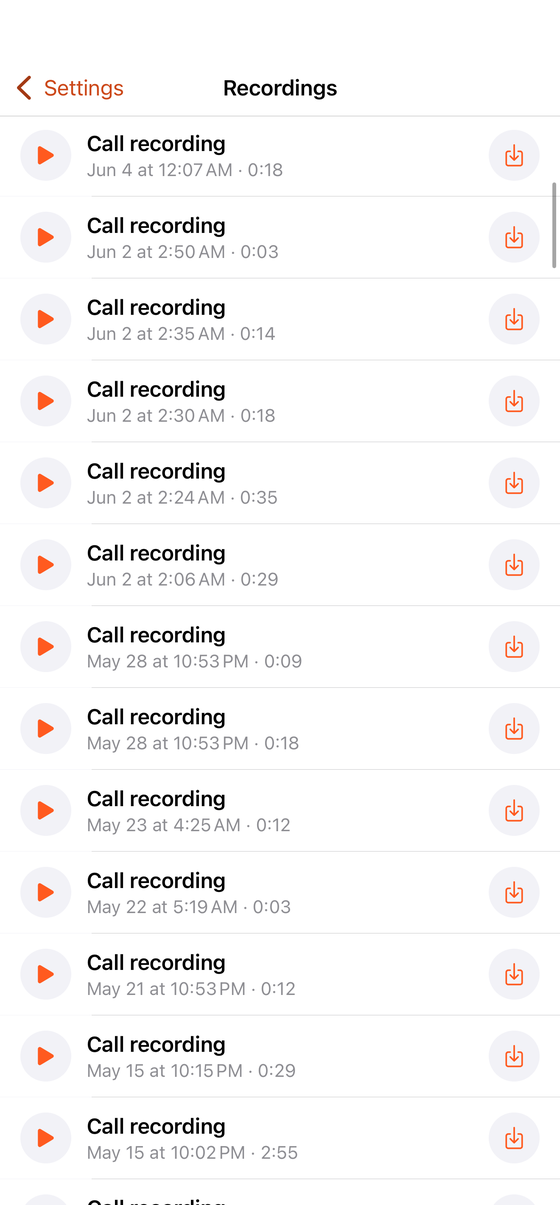
Call recording
ProEnable Call recording under Settings to automatically record calls. Find them under Settings → Call recording, play them back, and save them to the Files app.
Always follow the recording-consent laws that apply where you and the other party are located.
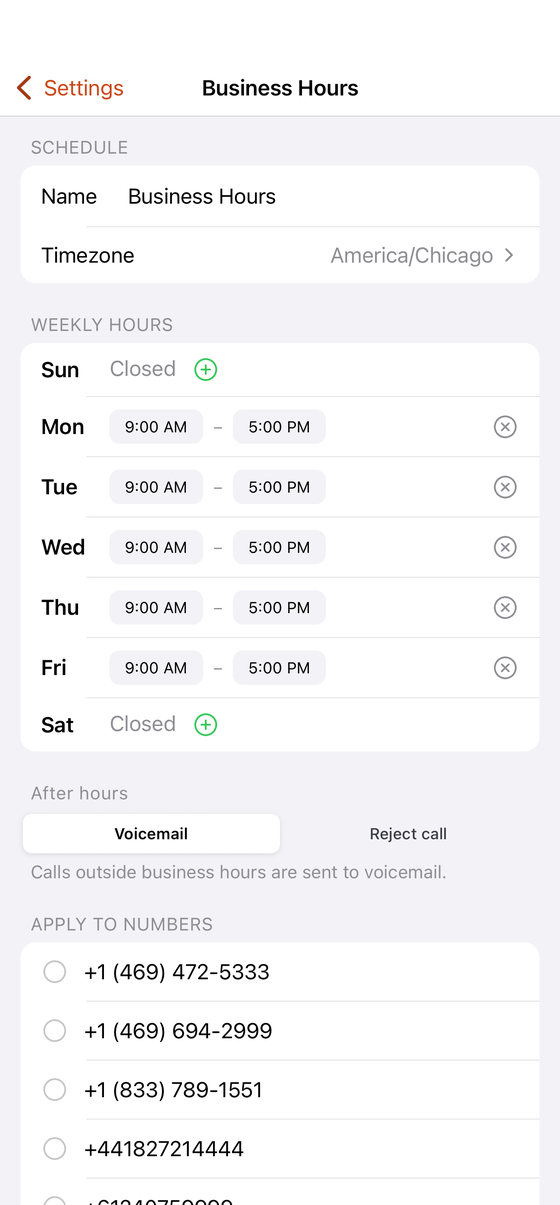
Business hours & routing
ProUnder Settings → Business Hours, set a weekly schedule and timezone per number. Outside your open hours, calls can go to voicemail or be rejected automatically. You can also forward any line to another number.
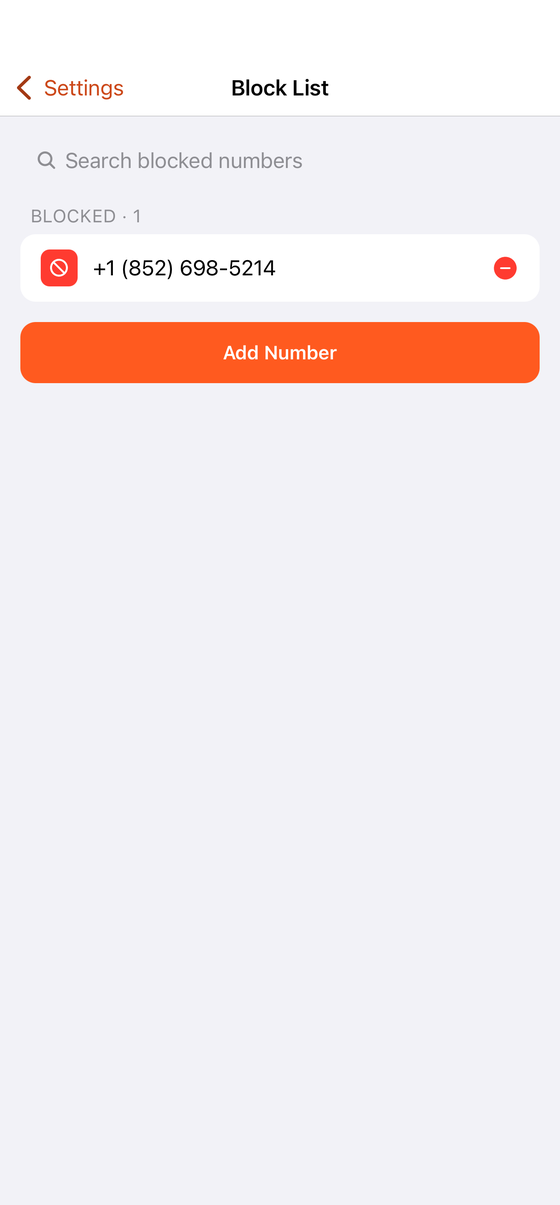
Block list
Add unwanted numbers under Settings → Block List. Inbound calls from blocked numbers are rejected automatically by the server, before your phone ever rings.
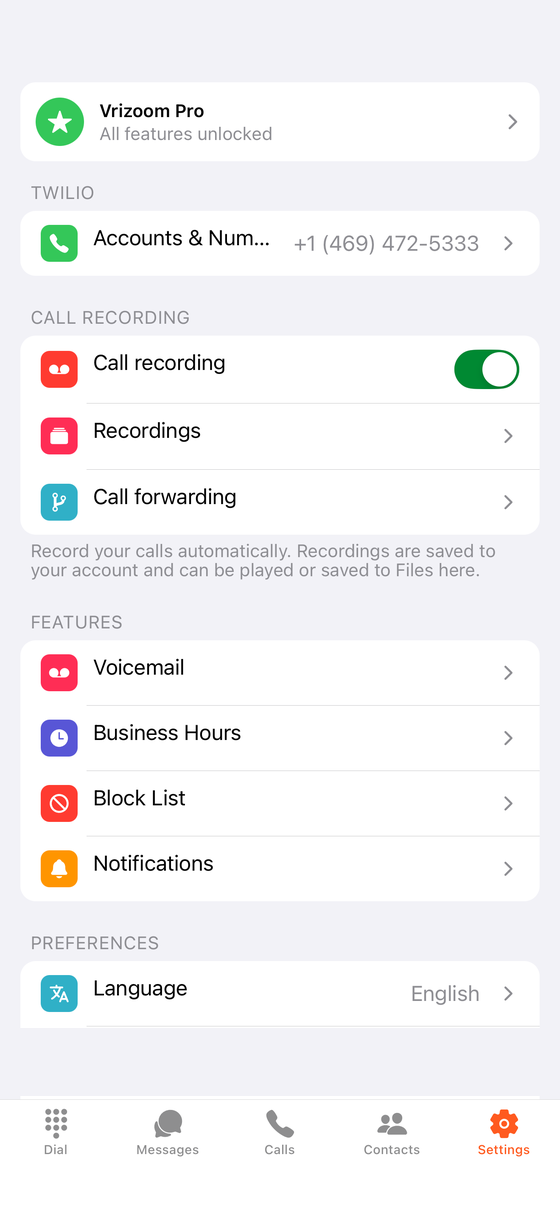
Managing numbers & accounts
Open Settings → Accounts & Numbers to see every number on your Twilio account. Free accounts use one number; Vrizoom Pro unlocks unlimited numbers and multiple devices.
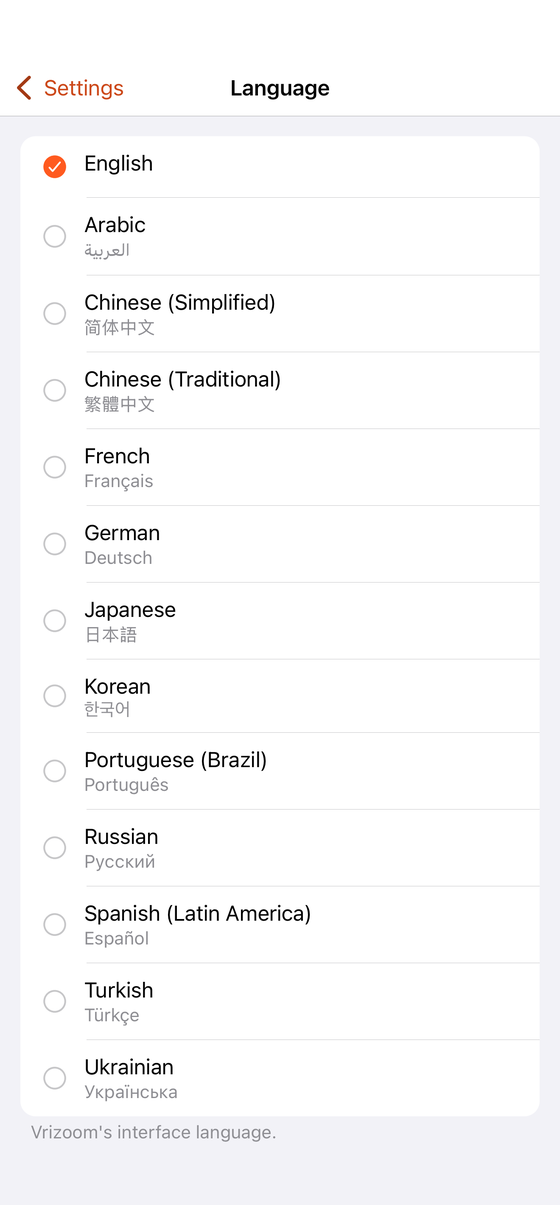
Appearance & language
Personalize Vrizoom under Settings → Preferences: switch between languages, and turn on Dark mode (Pro) for a sleek look day or night.
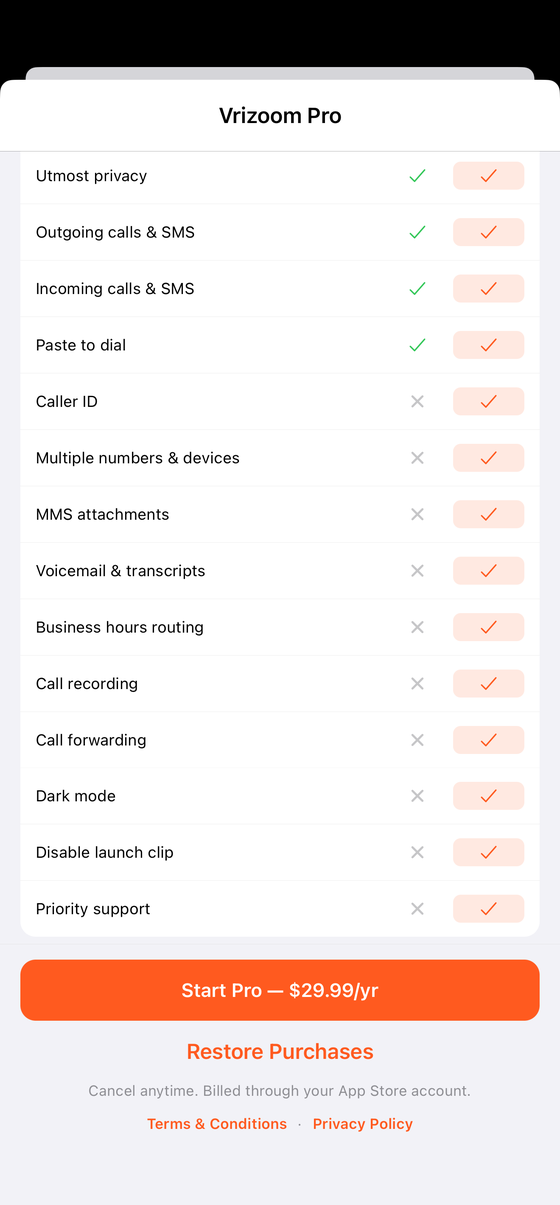
Vrizoom Pro
Vrizoom Pro unlocks multiple numbers & devices, MMS attachments, visual voicemail with transcripts, business-hours routing, call recording, per-number forwarding, and dark mode.
It’s $4.99/month or $29.99/year, billed through your Apple Account. Start it under Settings → Vrizoom Pro, and tap Restore Purchases if you’ve subscribed before. Cancel anytime in your App Store account settings.
Deleting your account
You’re always in control. Go to Settings → Delete Account to permanently remove your Vrizoom account, all the data we hold, and your login credential. Your Twilio account itself is untouched, it stays yours.
Common questions
Do I need a Twilio account?
Yes. Vrizoom is a client for your own Twilio account. You buy numbers from Twilio and Twilio bills you for usage. Vrizoom provides the app experience on top.
Why won't my test call connect?
If your Twilio account is still on a free Trial, it can only call or text numbers you've verified in the Twilio Console. Add funds to your Twilio account, or verify the destination number, to reach any number.
Where do I find my Account SID and Auth Token?
Sign in to the Twilio Console, both are shown on the main dashboard. Copy them into Vrizoom's Connect your Twilio screen.
Is my data private?
Your device contacts stay on your device and are never uploaded. Your Twilio credentials are encrypted. We don't sell your data, and there are no ads or trackers.
How do I restore my subscription on a new device?
Sign in with the same account, open Settings → Vrizoom Pro, and tap Restore Purchases.
Still need a hand?
Our team is happy to help with setup, billing, or anything else.